
Pop!_OS 24.04 LTS has arrived, bringing a wide range of improvements covered in our article on the release. The main highlight, of course, is the brand-new COSMIC 1.0 desktop environment. By contrast, users of Pop!_OS 22.04 LTS are still running its predecessor, a heavily customized version of the GNOME desktop, built with System76’s own patches and modifications.
Given that, it’s only natural for many users to want to move to Pop!_OS 24.04 LTS to take advantage of the new features. Thankfully, System76 has made the upgrade process straightforward, and you’ve come to the right place to find out exactly how to do it.
In this guide, I’ll walk you through upgrading from Pop!_OS 22.04 LTS to 24.04 LTS, covering all the key points. For most cases, the entire process typically takes between 30 and 60 minutes. Needless to say, everything you’ll see below has been tested and proven to work.
Step 1: Take System Backup
Although it is optional, this step is highly recommended. Take a system snapshot before proceeding using one of the system snapshot tools you’re familiar with. If you’re not sure which one to go with, check out my recommendations on the topic. This way, if something goes wrong, you can easily restore your system to its previous state.
However, if you do not feel like taking the above approach, you can instead use a command like the one shown below, which will archive all of the more critical directories and their contents in a tar.gz archive.
sudo tar czf /popos.tar.gz \
     --exclude=/popos.tar.gz \
     --exclude=/dev \
     --exclude=/run \
     --exclude=/mnt \
     --exclude=/proc \
     --exclude=/sys \
     --exclude=/tmp \
     --exclude=/media \
     --exclude=/lost+found \
     /Code language: Bash (bash)
Feel free to add more “–exclude=” parameters if needed. Finally, the command creates a backup of all files in the “popos.tar.gz” file located on the root partition (/), which you should ideally transfer to another computer or drive before starting the upgrade.
Step 2: Update All Software
Ensure you have a fully updated Pop!_OS 22.04 system. Open the Pop!_Shop app, click on the hamburger menu in the top-right corner, and select “Refresh“. If any updates are available, install them (and reboot if necessary) before moving on. Then, confirm there are no pending updates.
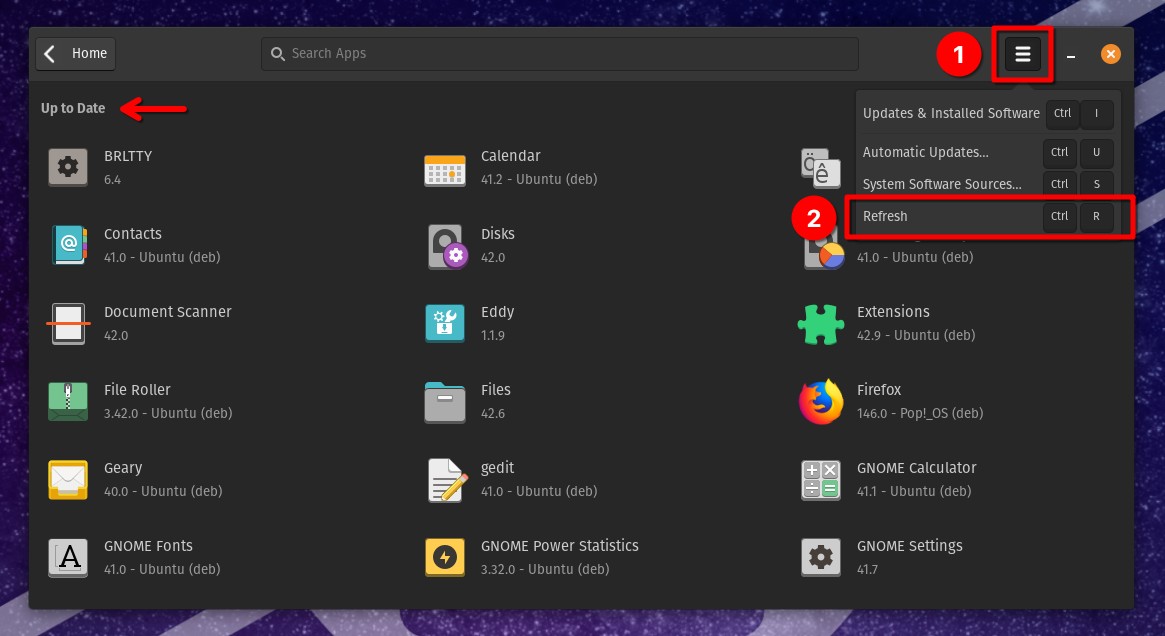
Here is our fully updated Pop!_OS 22.04 LTS system before upgrading to 24.04 LTS.
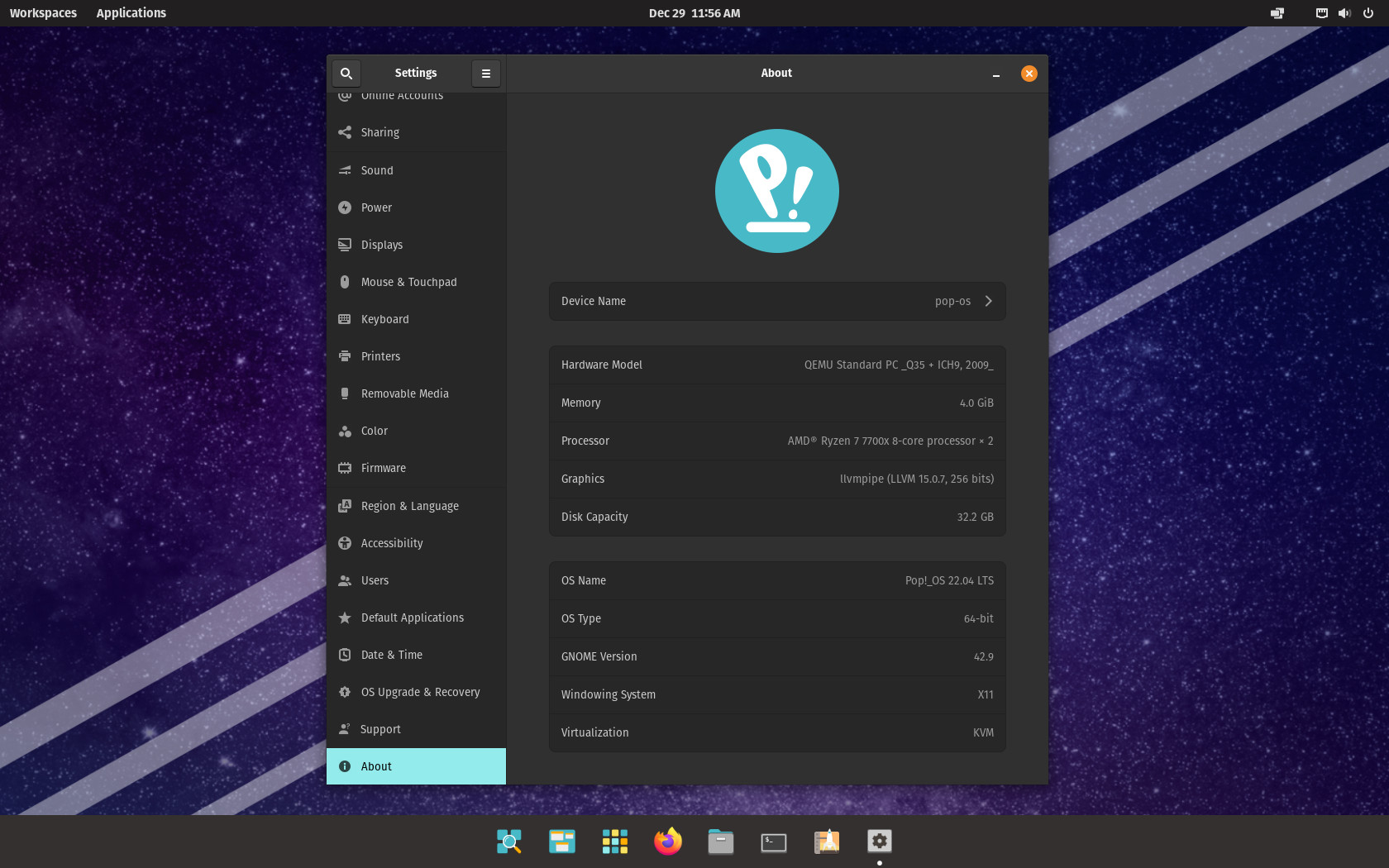
Step 3: Upgrade to Pop!_OS 24.04 LTS from 22.04 LTS
Now it’s time for the actual upgrade. Surprisingly, the whole process comes down to running a single command. Open the Terminal application and run the following:
pop-upgrade release upgrade -fCode language: Bash (bash)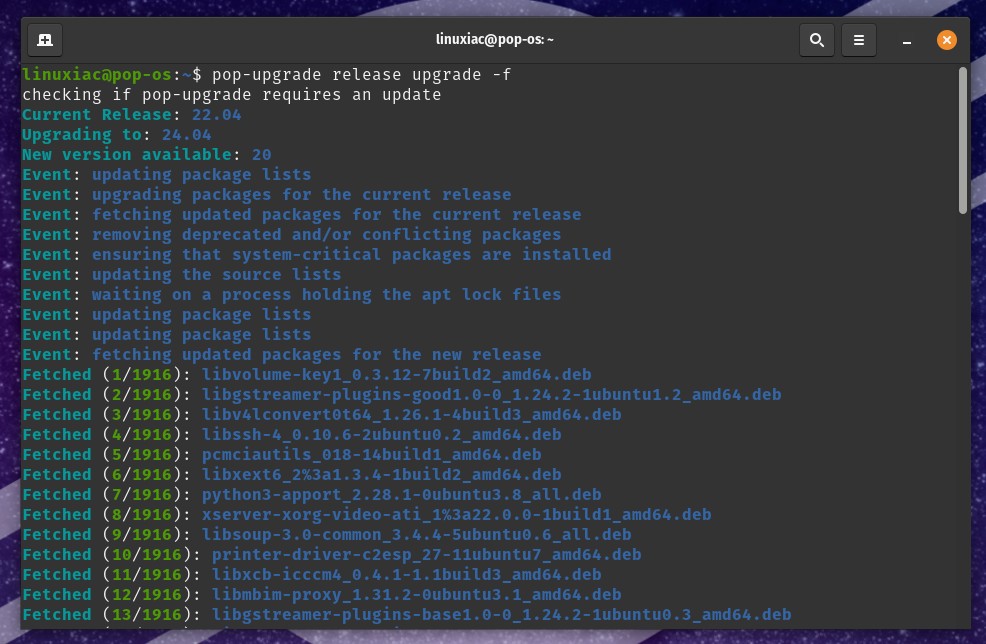
The system will run the required checks and then start downloading all the packages needed for the update. Please be patient, as this process may take some time.
Once the download finishes, you’ll be prompted to restart your system so the changes can take effect. Go ahead and do so.
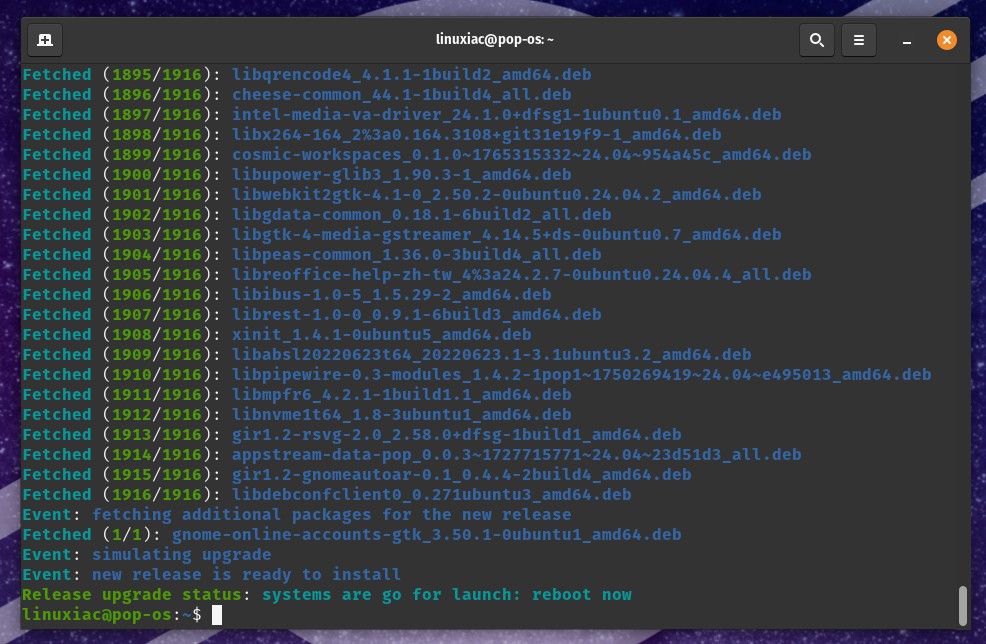
sudo rebootCode language: Bash (bash)Once you have done this, the update process will continue. Please be patient again and wait for it to finish. The exact duration depends on your hardware and how many apps you have installed, but for most people it finishes in about 20–30 minutes.
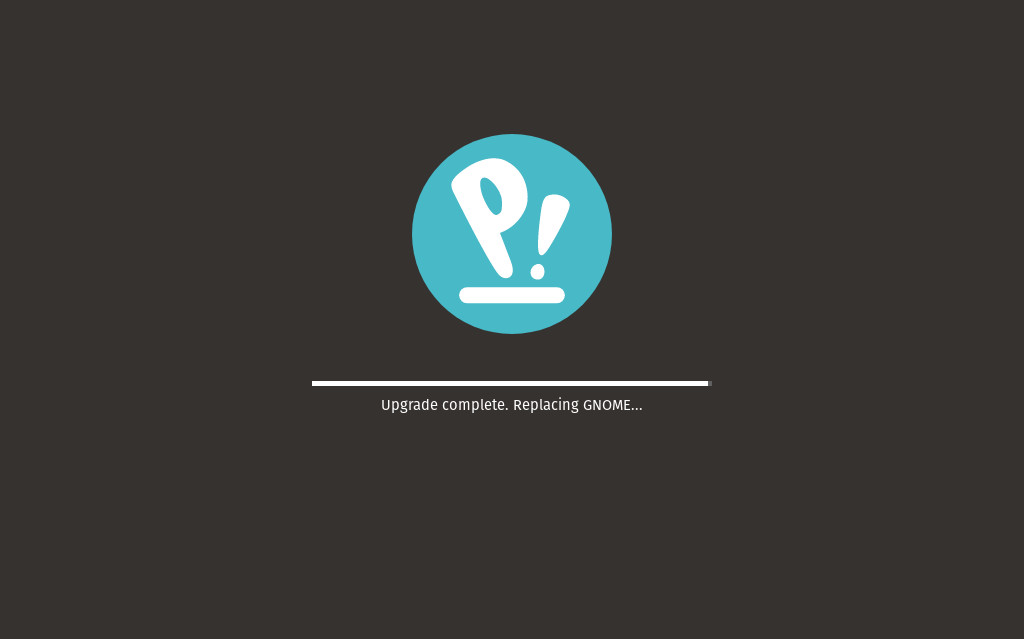
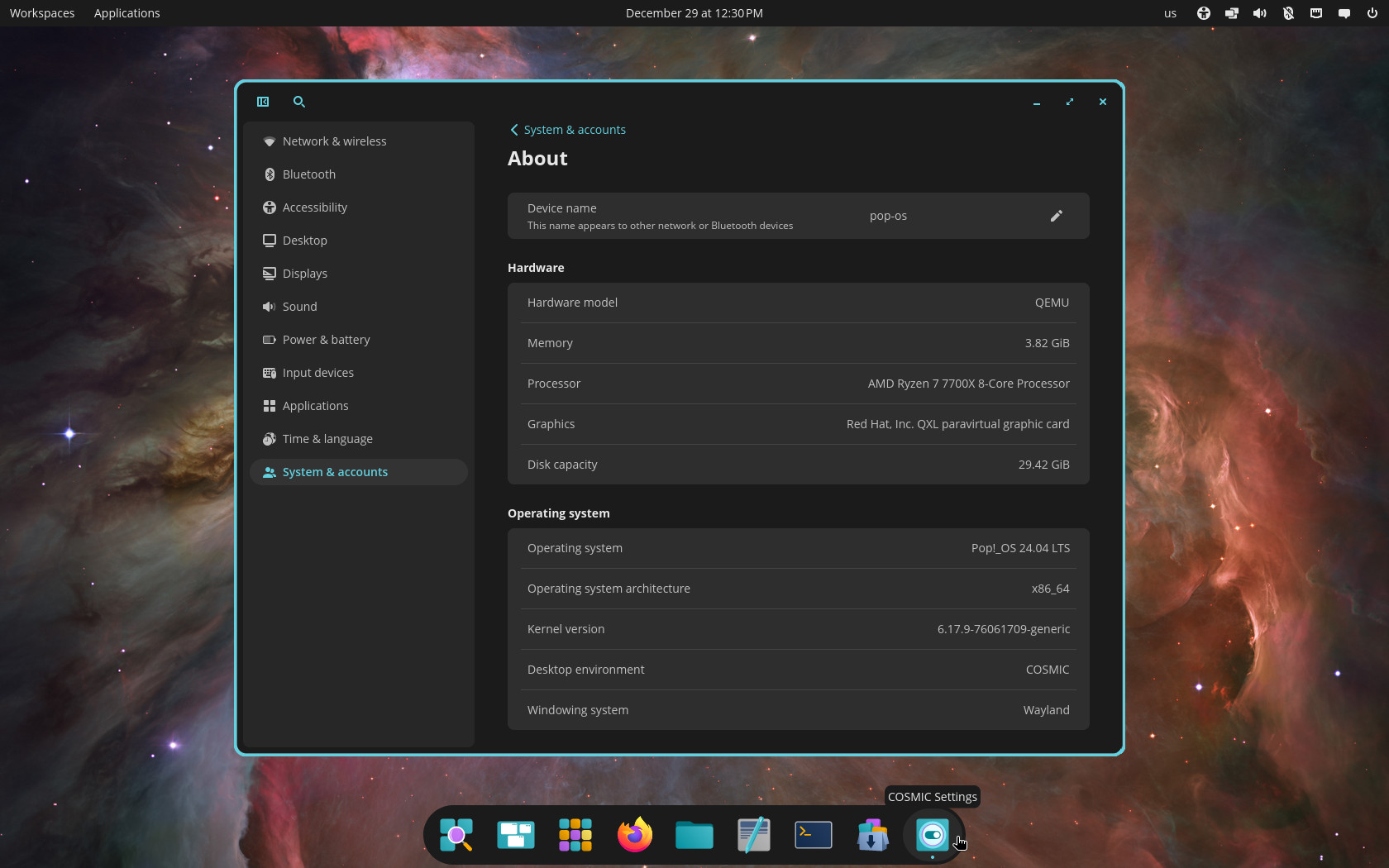
And that’s all. Your upgrade from Pop!_OS 22.04 LTS to 24.04 LTS has been completed successfully. Log in, and enjoy the COSMIC experience.
Conclusion
As you can see, with the proper guidance, upgrading from Pop!_OS 22.04 LTS to 24.04 LTS is relatively easy. The entire process took me about 30 minutes. However, if you still insist on a whole GUI-based upgrade without touching the terminal, System76 says users will receive an upgrade notification in the OS starting in January 2026.
Thanks for taking the time to read and use this guide. As always, your comments are most welcome.

Has anyone tried the upgrade on a system that uses other window managers like Qtile and Awesome? I was never a fan of Gnome and even the System76 customized version was blah. My system is running the base Pop!_OS 22.04 but heavily X11 centric with several changes in startup so I can choose which window manager to load and the apps associated with each, to create a custom desktop experience. I have been trying out Cosmic on two other systems and like it. Since Cosmic is Wayland, I am curious what happens to all the X11 stuff when I upgrade. I don’t mind moving to Wayland and Cosmic… my workflow can adapt, but I am concerned if there will be lots of conflicts or incompatibilities if I upgrade. I have good/tested backups so I will be OK, but I am wondering if upgrading is better or a fresh install and then re-install apps and my home directory.
So you mentioned how to upgrade, but nothing about how to rollback from the backup if something goes wrong. can you please update the article with that?
Thanks for the clear instructions, they worked like a charm on my framework 13.
Decent walkthrough for the happy path, but this article leaves you hanging the moment something goes sideways.
Few things to know before you pull the trigger:
That tar command works but if you’re on btrfs (Pop supports it), use Timeshift or snapper instead. Actually test your restore process before upgrading. Taking a backup you’ve never tested isn’t a backup, it’s hope.
The -f flag forces the upgrade. Article doesn’t mention that. Know what you’re running.
Your GNOME setup is gone. COSMIC is a completely different desktop environment. Extensions, themes, tweaks, none of that carries over. If you’ve spent years customizing GNOME, set your expectations accordingly.
NVIDIA users should note the article doesn’t distinguish between Intel/AMD and NVIDIA upgrade paths. There can be driver complications. Check the System76 support docs if you’re on an NVIDIA card..
No rollback is covered. What’s your plan if COSMIC doesn’t work for you? Hope you made that backup.
Official docs here: https://support.system76.com
The upgrade itself is straightforward when it works. Just go in with eyes open
Much appreciation for your comment
Hi,
thanks for the guide. My system somehow doesnt want me to upgrade:
checking if pop-upgrade requires an update
Current Release: 22.04
Upgrading to: 24.04
New version available: false
no release available to upgrade to
I am not sure what seems to be the problem
type in terminal pop-upgrade release upgrade -f