

This year, the KDE project reported record fundraising revenue, reinforcing its status as one of (if not the most) beloved and widely used desktop environments in the open-source world. That achievement is well deserved, but it is not the focus here.
Instead, this article looks at another way to help KDE improve. With just a few clicks, you can provide anonymous technical data that helps KDE focus development efforts on the areas that matter most. Thus, you indirectly help your favorite desktop environment become even better.
The feature is available directly in System Settings under User Feedback. It is disabled by default and clearly explains what data would be shared at each level. No personal data is collected, and KDE explicitly states that files, websites, or any information that could identify a user are never included.
I have to admit that despite using KDE for years, I never paid much attention to this setting (shame on me). It always flew under my radar, overshadowed by other options I usually tweak right away, such as those tied to the desktop’s behavior and appearance. Still, it’s never too late to correct an oversight. Here’s how.
Open KDE’s System Settings. In the left sidebar, go to Security & Privacy and select User Feedback. Use the vertical slider to choose one of four levels that control how much technical data your system sends to the KDE project. When you’re done, click Apply to save your changes.
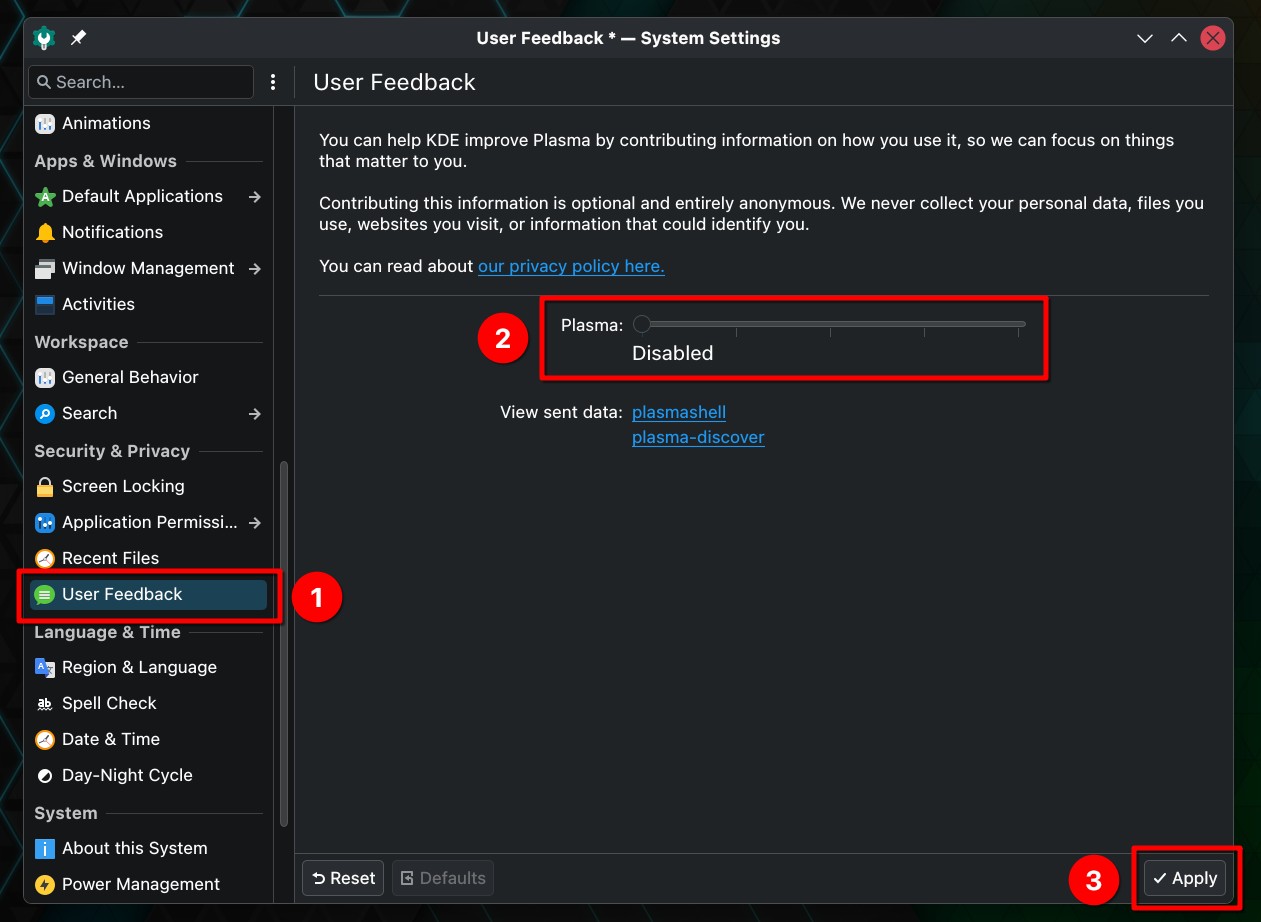
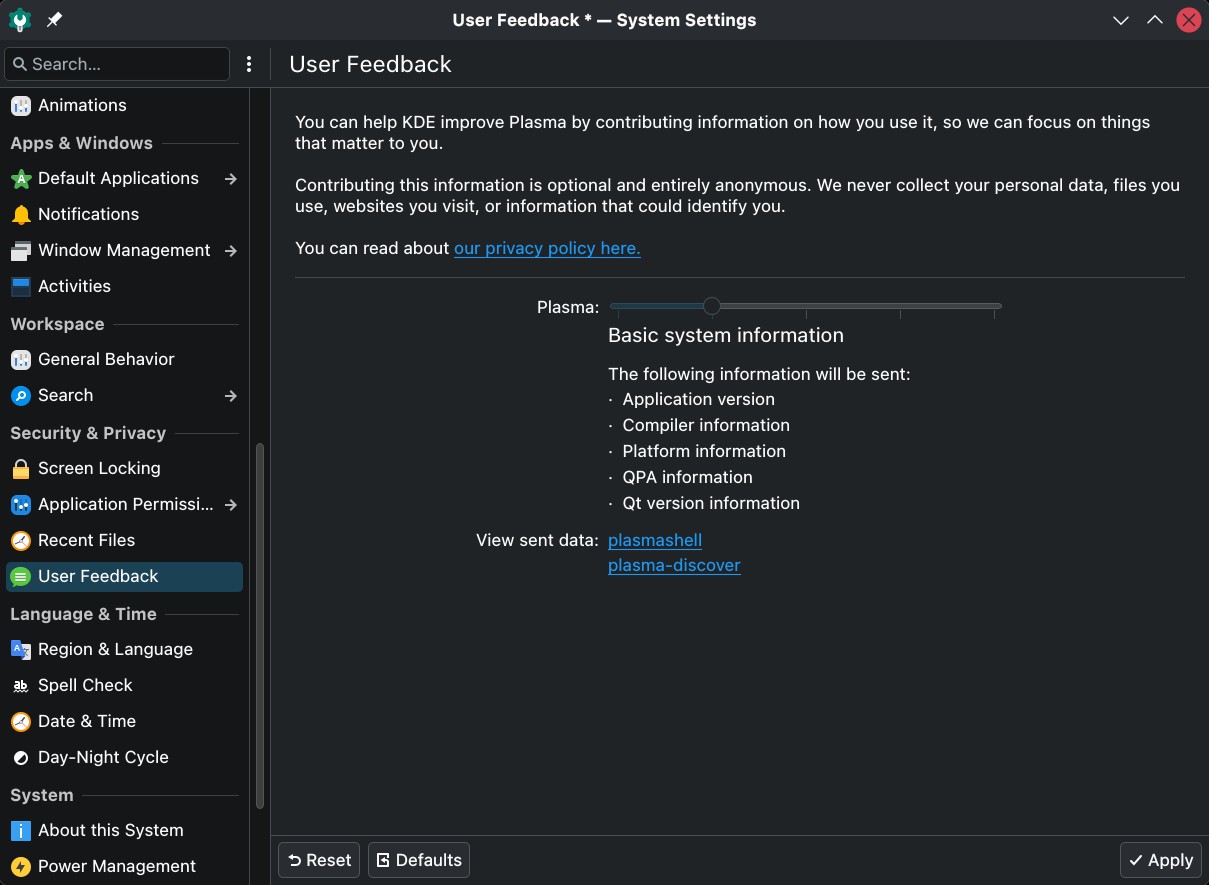
As I said, by default, nothing is sent. Enabling Basic system information shares technical details such as application versions, platform information, compiler data, and the Qt version in use. This helps developers understand which environments Plasma actually runs on.
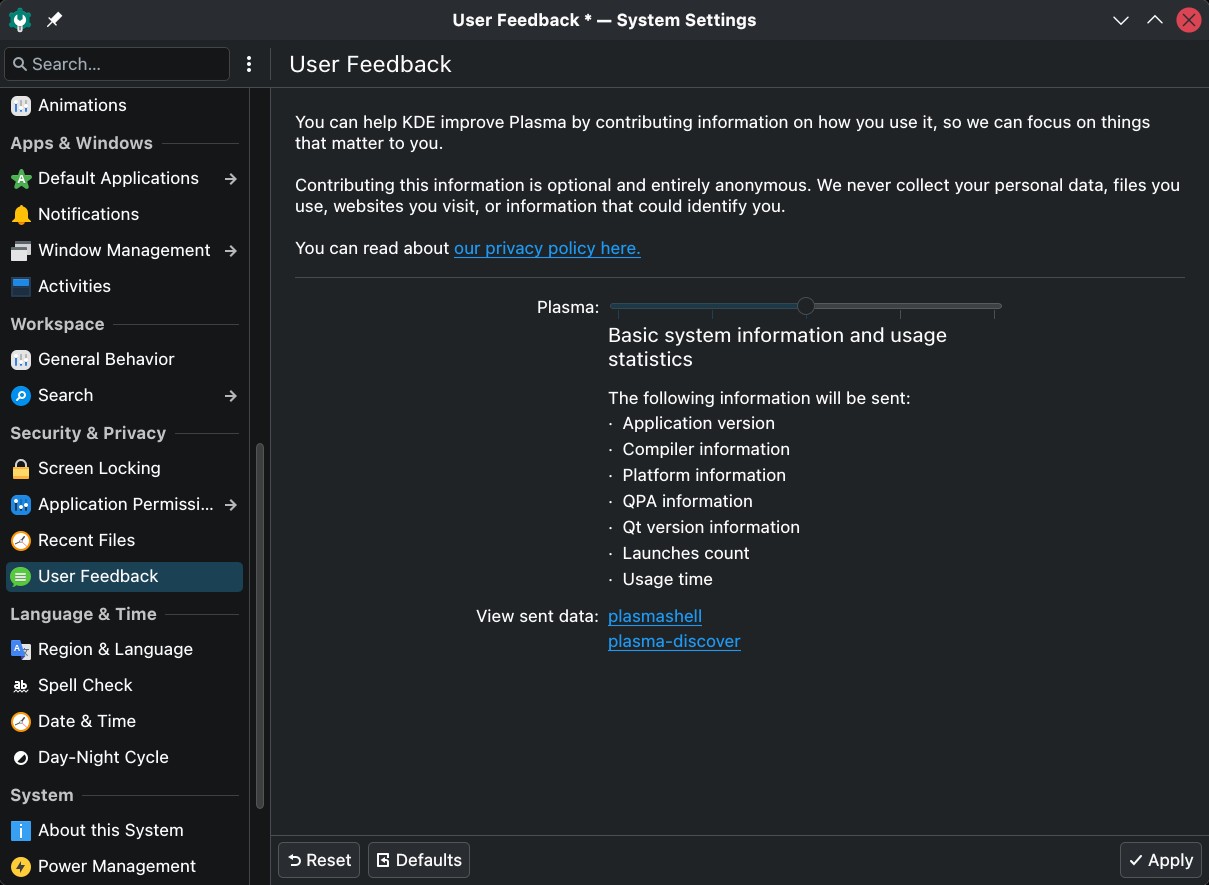
Raising the level to Basic system information and usage statistics adds anonymous metrics such as application launch counts and overall usage time. This allows KDE to see which components are widely used and which are rarely touched, helping prioritize maintenance, performance work, and regressions.
The highest level includes Detailed system information and usage statistics, including screen parameters, panel counts, locale information, and OpenGL details. This is particularly useful for diagnosing layout issues, graphics driver problems, and multi-monitor behavior across different hardware setups.
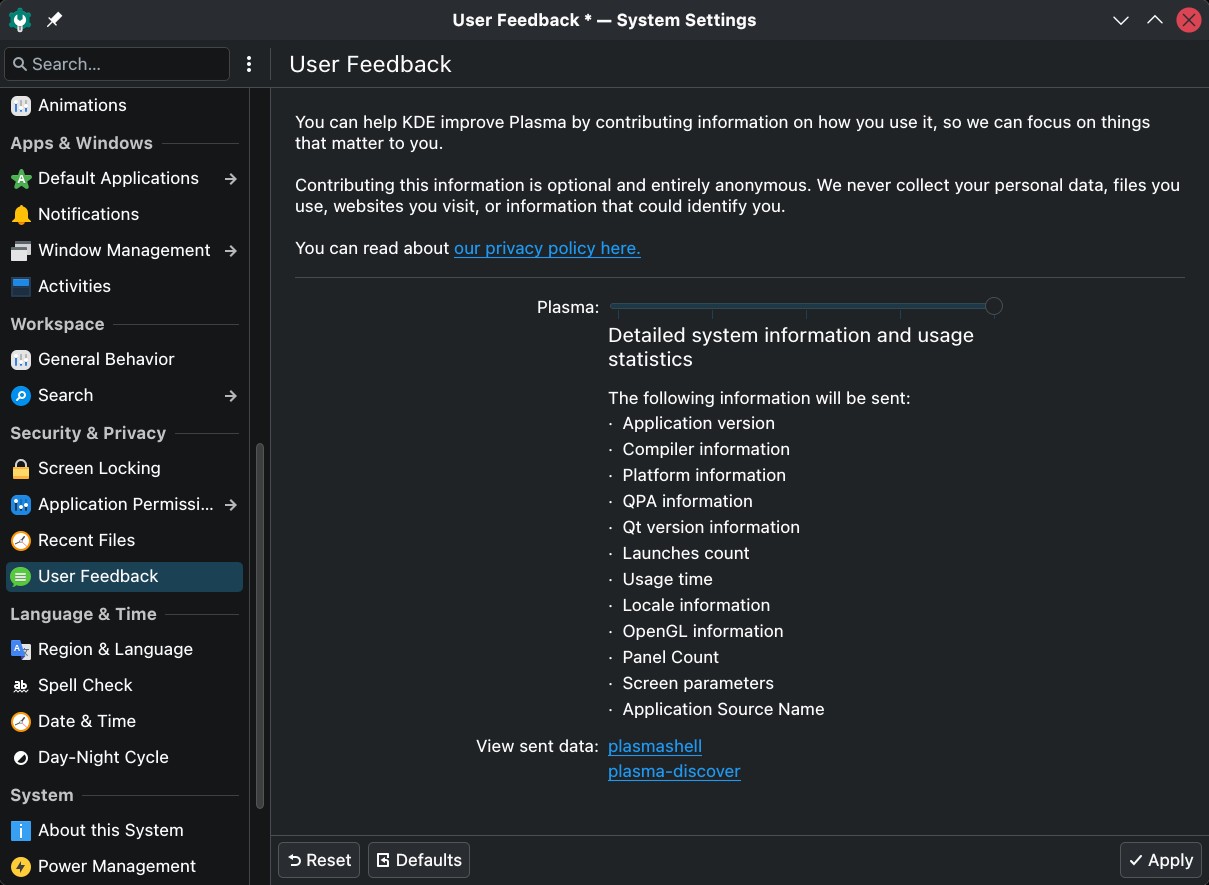
As you can see, at every level, Plasma shows a clear list of exactly what will be sent before changes are applied.
However, if you still have any concerns, KDE makes it easy to put them to rest by letting you quickly review exactly what data is being sent. Click one of the two links, plasmashell or plasma-discover, and your file manager will open the directory containing the files generated so far. You can then open those files in a text editor and review their contents yourself for peace of mind.

Finally, what’s the main idea behind all this? In short, from a development perspective, this information replaces guesswork with evidence. Instead of relying solely on bug reports or anecdotal feedback, KDE developers can see clear patterns across thousands of systems. That makes it easier to decide where their development time will have the greatest impact.
For you and me, enabling feedback requires minimal effort and carries no privacy trade-off. Once again, the system is anonymous by design, opt-in, and reversible with a single click. It is a small action that, at the same time, directly contributes hugely to a more stable, better-focused Plasma desktop.
So, unless you are a privacy fanatic (even then, there is no cause for concern), I strongly recommend supporting the KDE developers in this way.





Hi,
Quick question — is your business currently using any AI tools or automation to handle day-to-day tasks?
We help businesses save time and reduce costs by automating repetitive work using AI — things like customer follow-ups, data entry, reporting, scheduling, and more.
Would love to know how you’re currently managing these tasks. Happy to share a few ideas that might be a good fit for your business.
Thanks for your time!
Best Wishes,
Mohamed Buhari
+91-8248613003
https://vbatechnologies.com
This is cool, but for our protection and the best privacy and security possible, the entire functionality should’ve been made as an optional installable / uninstallable module!
As having it built-in, without any firewall being installed and active by default or having any other warning, it could very easily be turned on though one of the updates that the system receives or by other programs or users.
And the worse part another update can be pushed to turn it off again and cover the tracks that it was once turned one and sent some data already.
A thing that the KDE developers still refuse to do!
And now there’s also the annoying pop-up asking for donations, which also is not an installable / uninstallable module and cannot even be turned off!
I usually add this in hopes it actually helps. Glad to see it is useful.
Adding a b/w photo (or illustration) of a woman on the image for the story isn’t going to get me to enable telemetry any time soon.
Today it’s just a bit of details, tomorrow [it could be] it’s full system information complete with serial #’s.
Why would a respectable FOSS project burn themselves like that?
As said: it’s opt-in so, by default, you have nothing to worry about. And you are under no obligation to opt-in either.
Compare that to Windows, Chrome or even Firefox…
Bobby, there’s one more area where you can enable feedback in Plasma. It’s in Dolphin itself. “Ctrl-Shift-,” is the keyboard shortcut. You can also select the hamburger menu in the upper right (default position), then select “Configure”, then at the bottom, “Configure Dolphin”. Go to “User Feedback” on the left side. There are two other sections that you can configure! The second one is outstanding, it allows you to participate in surveys! In a time where we are so adverse to telemetry, this is so easily missed, and I think it’s a great way for the devs to get feedback on what’s working and what isn’t.
Matthew,
Thank you for such information. This is useful.
Gérard
Thanks, Matthew. I didn’t even know this option existed.
Yeah, the one in System Settings is for the desktop but some applications have their own setting.
The other day I learned that Kmail also has it but unfortunately for me, it seems Fedora doesn’t include it.
That’s also something to keep in minf BTW: not every distro compiles UserFeedback support in their packages.