
Simple Taskbar (currently supports GNOME 50) is a new extension that transforms GNOME Desktop’s native panel into a persistent and highly configurable application taskbar.
Importantly, rather than replacing GNOME’s core panel components, the extension integrates pinned and running applications alongside Activities, the clock, calendar, Quick Settings, and other extension indicators, which results in a more traditional desktop layout that remains recognizably GNOME underneath.
As you’ve probably already guessed, Simple Taskbar is positioned as an alternative to Dash to Panel, though it also overlaps with Dash to Dock by bringing application launching and window management directly into the panel.
Its developer describes the project as a better, more cohesive out-of-the-box option designed to look and behave consistently without requiring users to configure many settings right after installation.
The extension displays GNOME favorites and running applications together. Clicking an icon launches, focuses, or minimizes an application, while middle-clicking opens a new window and right-clicking shows GNOME’s regular application menu.
Moreover, applications can be rearranged by drag and drop, with changes synchronized with GNOME’s original Dash favorites.
Hovering over an application icon shows live previews of its open windows, including controls to activate or close individual windows. Applications with multiple windows can spread only their own windows across the Overview, including those on other workspaces.
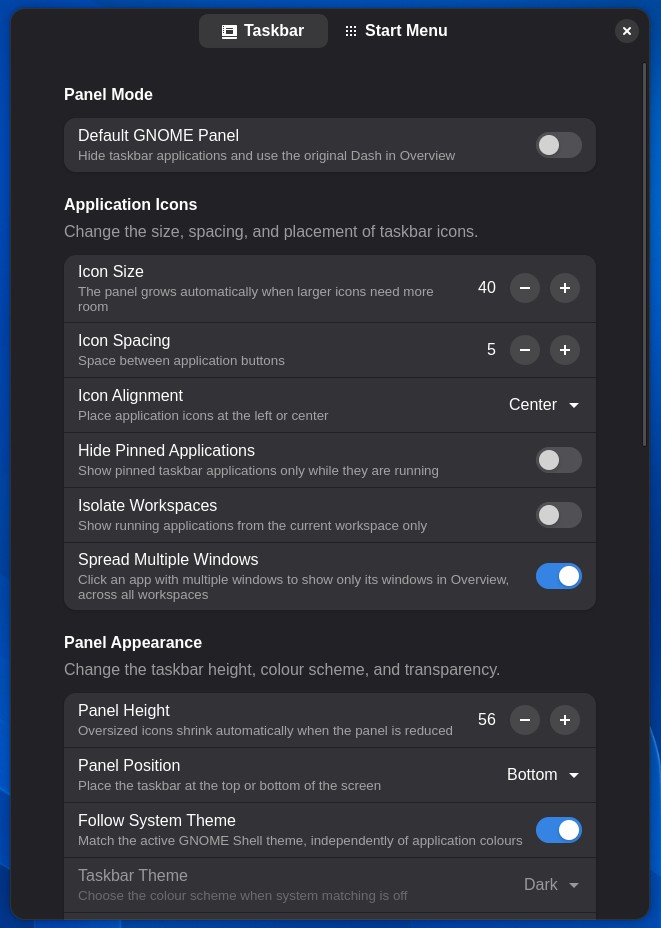
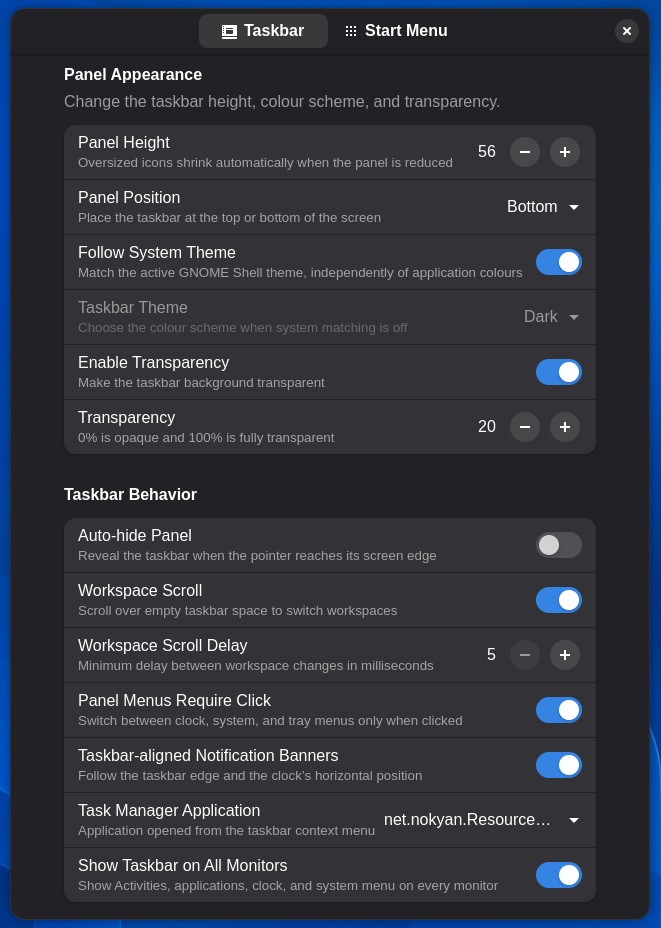
It’s also impressive that the customization options are extensive. Users can place the panel at the top or bottom of the display, align application icons left or center, adjust panel height, icon size, spacing, transparency, and choose light, dark, or Shell-following themes. Auto-hide, workspace switching through panel scrolling, current-workspace isolation, and panels on secondary monitors are also supported.
Moreover, individual panel elements can be repositioned. Activities, the clock, Quick Settings, the Start button, and an optional folder menu can be placed in different panel sections. Notification banners can follow the selected panel edge and clock alignment, and an optional desktop button can be added at the far edge of the taskbar.
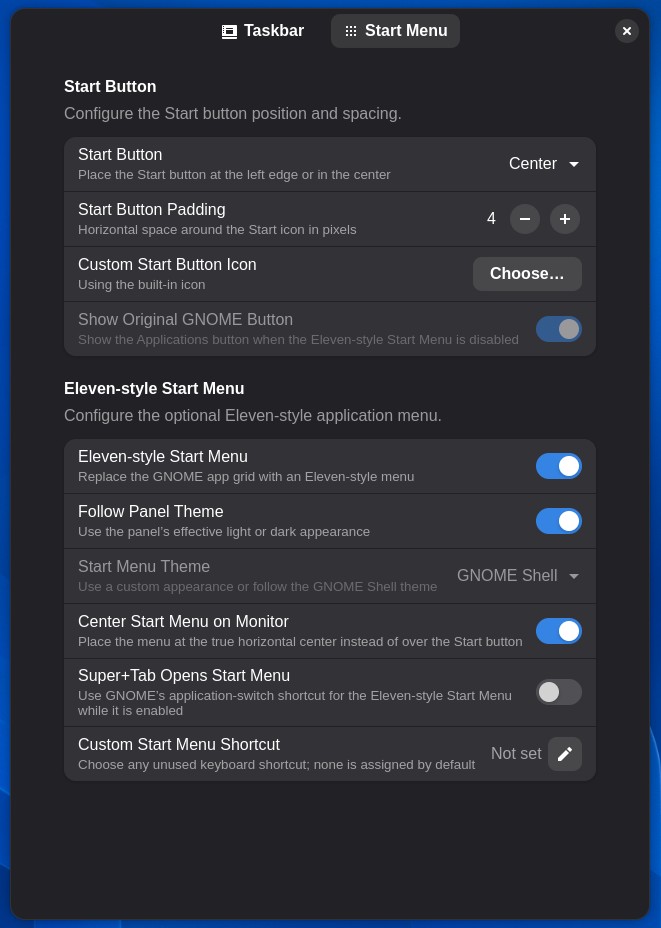
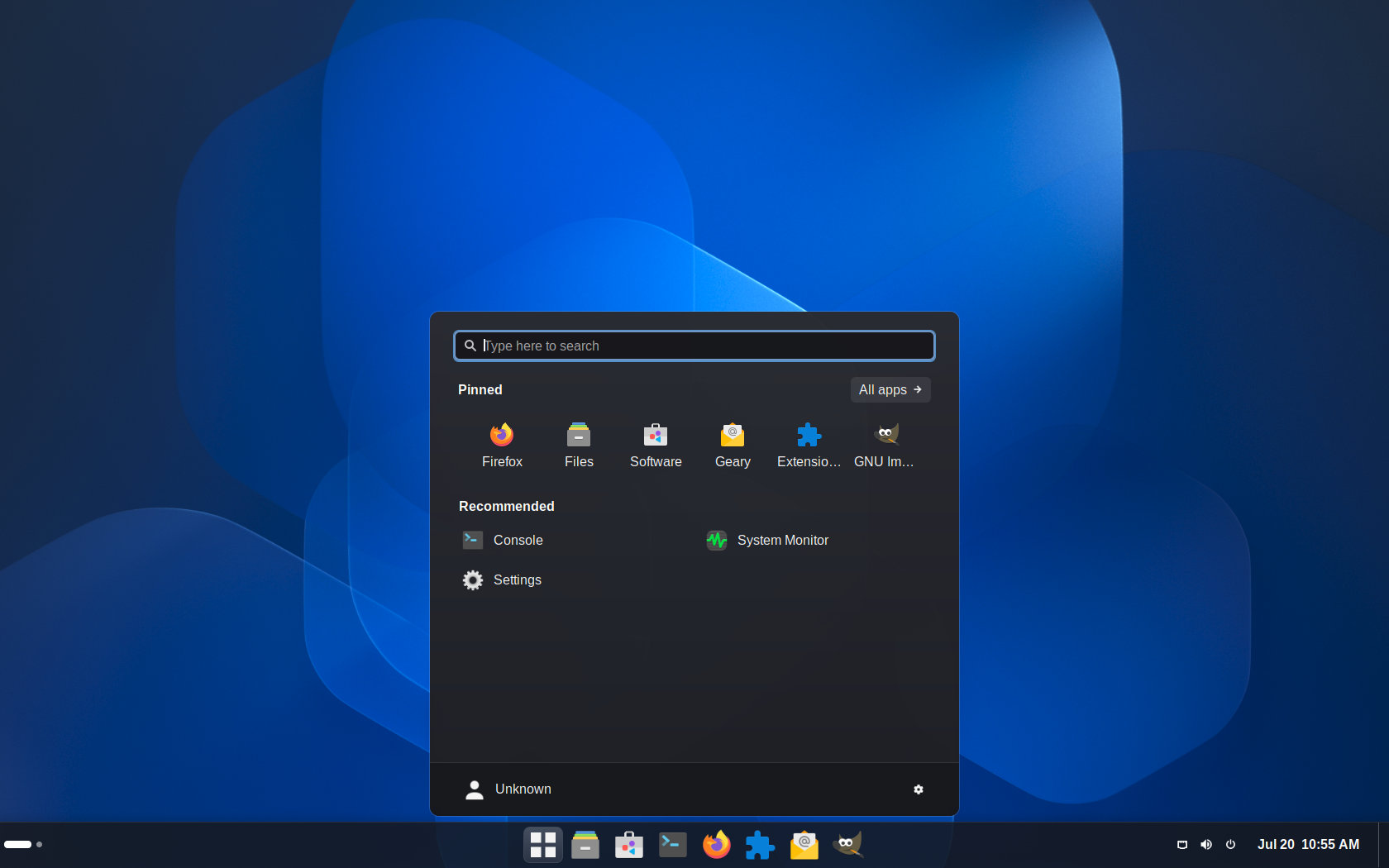
One of Simple Taskbar’s most distinctive additions is the built-in optional Eleven-style Start Menu. It includes application search, an All Apps view, a separately configurable grid of pinned applications, recommended apps, and context-menu actions for pinning items to either the Start menu or taskbar. Users who prefer GNOME’s original application button can restore it instead.
The extension offers two operating modes. Taskbar mode displays favorites and running applications directly on the panel and hides GNOME’s original Overview Dash. Default GNOME Panel mode removes taskbar applications, restores the original Dash, and provides a native-style panel across multiple monitors while keeping the extension’s positioning and appearance controls.
For users already using Dash to Panel or Ubuntu Dock, Simple Taskbar automatically disables them when the extension is activated in order to prevent two application launchers from occupying the same screen edge. Of course, they remain available when the extension switches to Default GNOME Panel mode.
Regarding installation, since the project is still new and has not yet been published on the official GNOME Extensions website, users must get the source or installation package from the extension’s GitHub page.




I still use the Linux panel, and I will stick to that.
Trolling hard?
> I still use the Linux panel
Linux is a kernel. It has no GUI and it doesn’t have panels.
So what panel are you talking about? _This_ is a “Linux panel”!
You clearly knew what he meant, GNOME panel in this case. Stop being a pedantic prick and mind your own damn business. You’re the kind of person that makes a community insufferable and gatekeep newcomers from staying